Within VCF9 we have a new way to leverage Identity & Access Management.
While in VCF 5.x and before the Identity Management Appliance was needed to orchestrate Logins to other facilities now we can also leverage the embeeded SSO from our vcenter.
Before you choose which identity broker is selected, you need to check the prerequisites and also see which identity broker deployment is more suitable
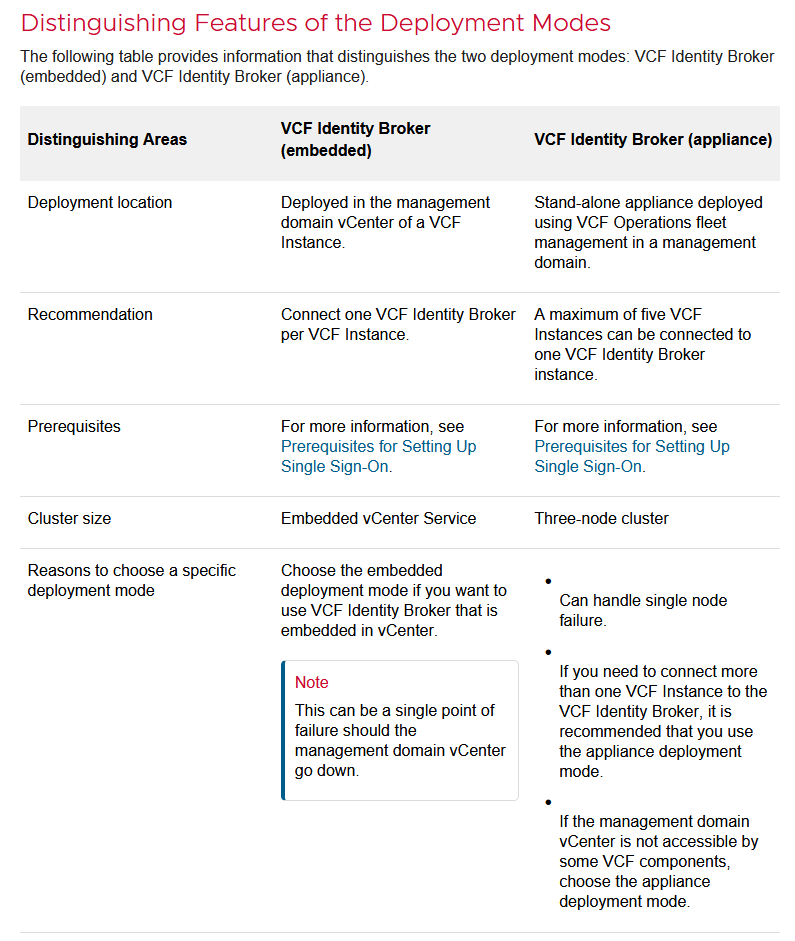
Prerequisites for Configuring VCF Single Sign-On Using the Embedded Deployment Mode
If you choose the embedded deployment mode for setting up
VCF Single Sign-On, ensure that the following prerequisites are met:
- The management domain vCenter must be at version 9.0 or later and have a VMware Cloud Foundation license assigned.
- The management domain vCenter must NOT be part of Enhanced Linked Mode (ELM).
Do not activate ELM in the participating vCenter instances after configuring
VCF Single Sign-On in embedded mode.
You can choose appliance as the mode of deployment if the above criteria are not met. However, the integration of vCenter with VCF Single Sign-On will not be possible at a later stage without first meeting the above criteria.
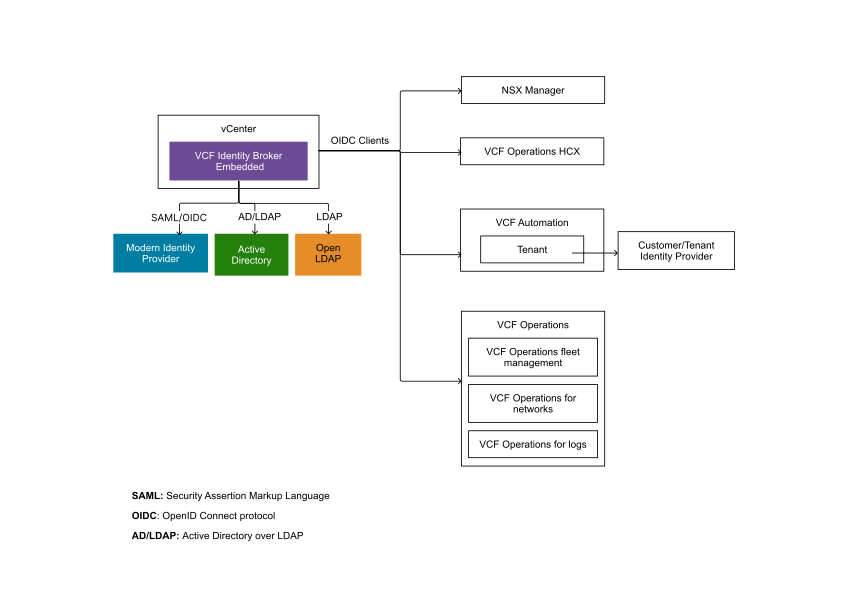
This flowchart shows how the vcenter embedded SSO Deployment integrates into your VCF Fleet:
Prerequisites for Configuring VCF Single Sign-On Using the Appliance Deployment Mode
If you choose to configure
VCF Single Sign-On in appliance mode, the
VMware Cloud Foundation platform must meet the following minimum requirements:
- A 3-node cluster will be deployed.
- Each node will have 8 vCPUs and 16GB RAM.
- Each cluster requires a minimum of 700GB storage.
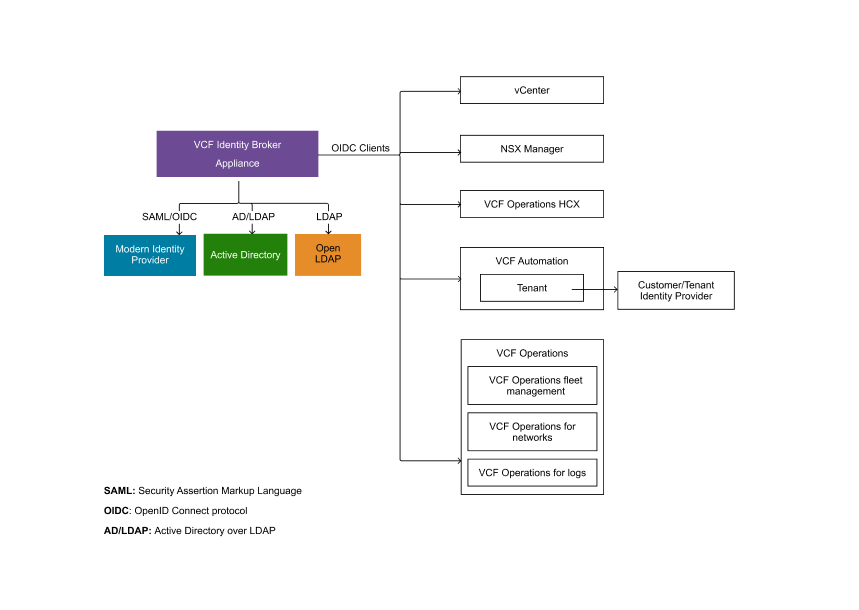
This flowchart shows how the VCF Identity Broker Appliances integrates into your VCF Fleet:
Now since we talked about the pre-requisites lets start deploying SSO! I will be deploying/configuring the embedded SSO with an Active-Directory behind it so that in the end i can allow my domain-admin users to login into each components (apart from the SDDC Manager as mentioned 😉 ).
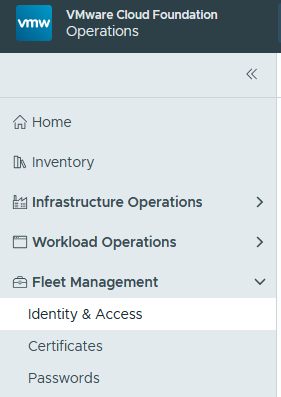
First, we need to go to the Fleet Management within VCF Operations and then select Identity & Access
There we will see a landingpage with a lot of hints regarding the enablement of SSO.
After we read all hints and made sure that our vcenters aren’t in enhanced linked mode we are greeted by the SSO Overwiews “getting started” page:
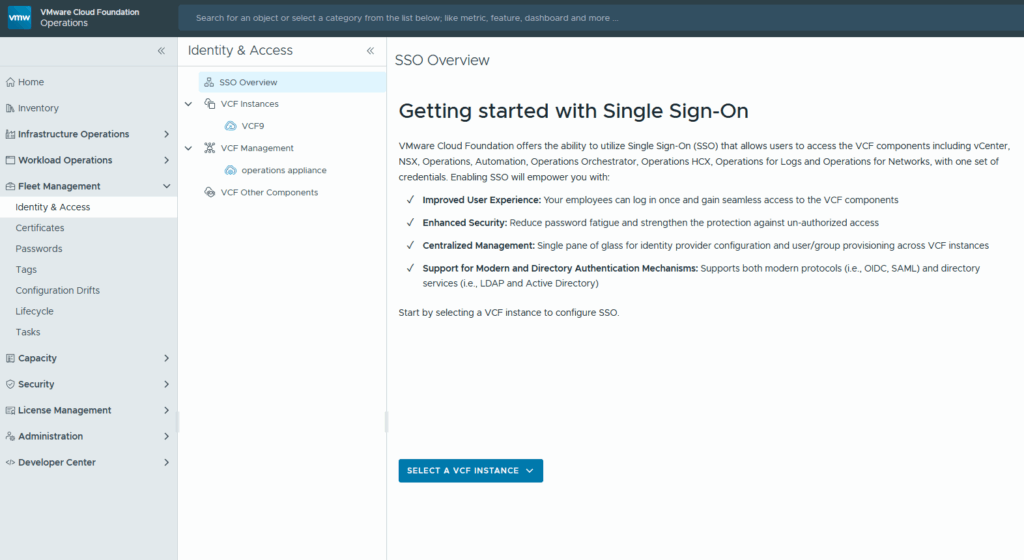
after selecting our VCF instance (VCF9 in my lab) we are able to choose how SSO is gonna be deployed / implemented:
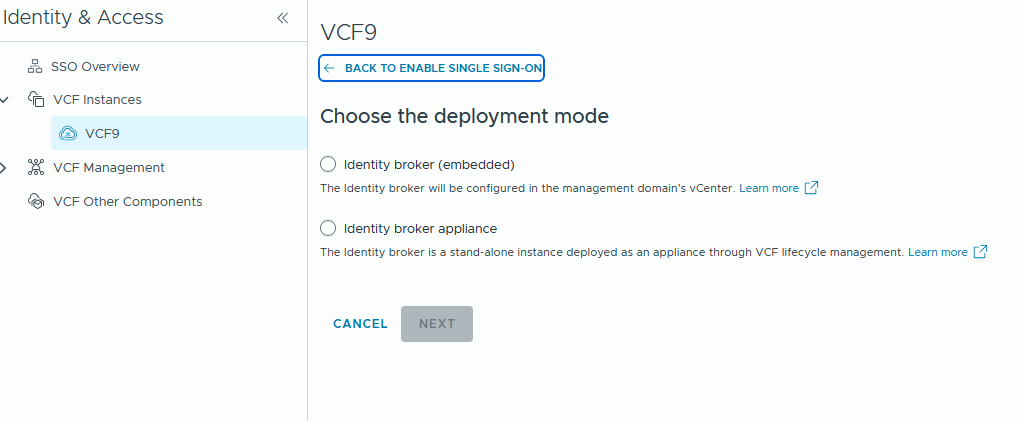
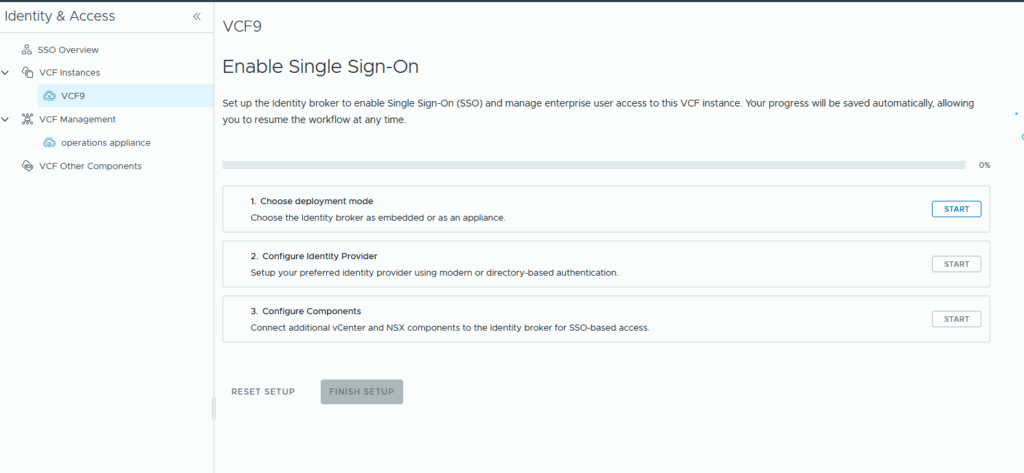
From there on we select our VCF instance and go trough the 3 steps of the wizard and start with the selection of our deployment mode
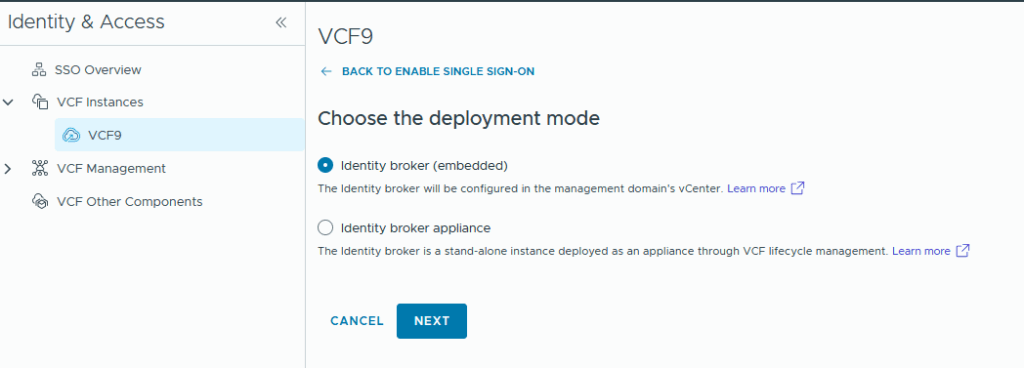
Here we have the option to choose between both deployment models in this article we will simply leverage SSO over our managemend domains vcenter and therefore choose the embedded Identity broker:
in the next step we configure our identity broker and as you might notice apart from the Directory-Based Identity Provider we even can add Modern Identity Providers!
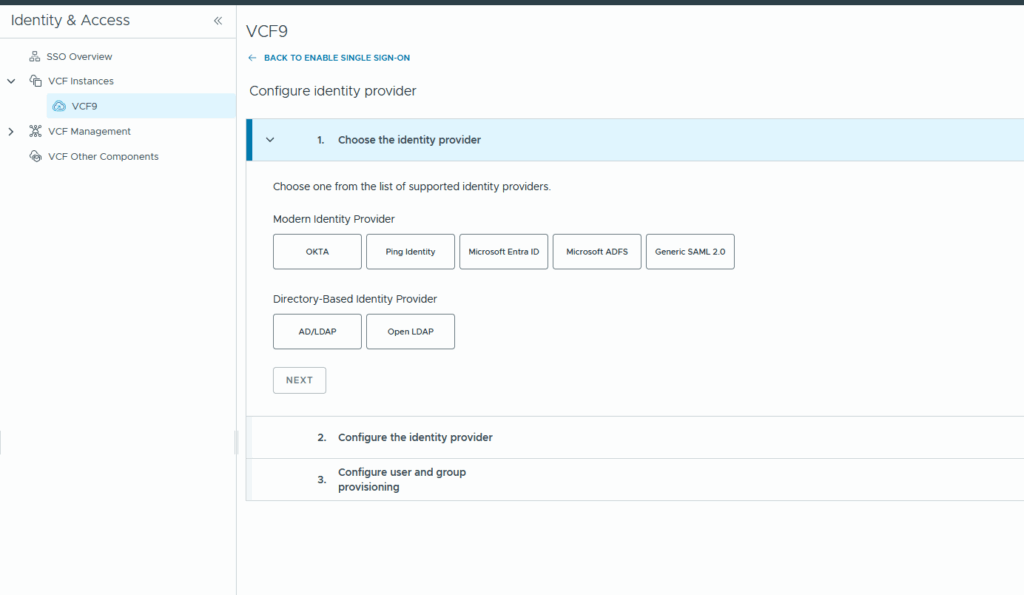
Those modern providers are the same that vcenter 9 will give you 😉
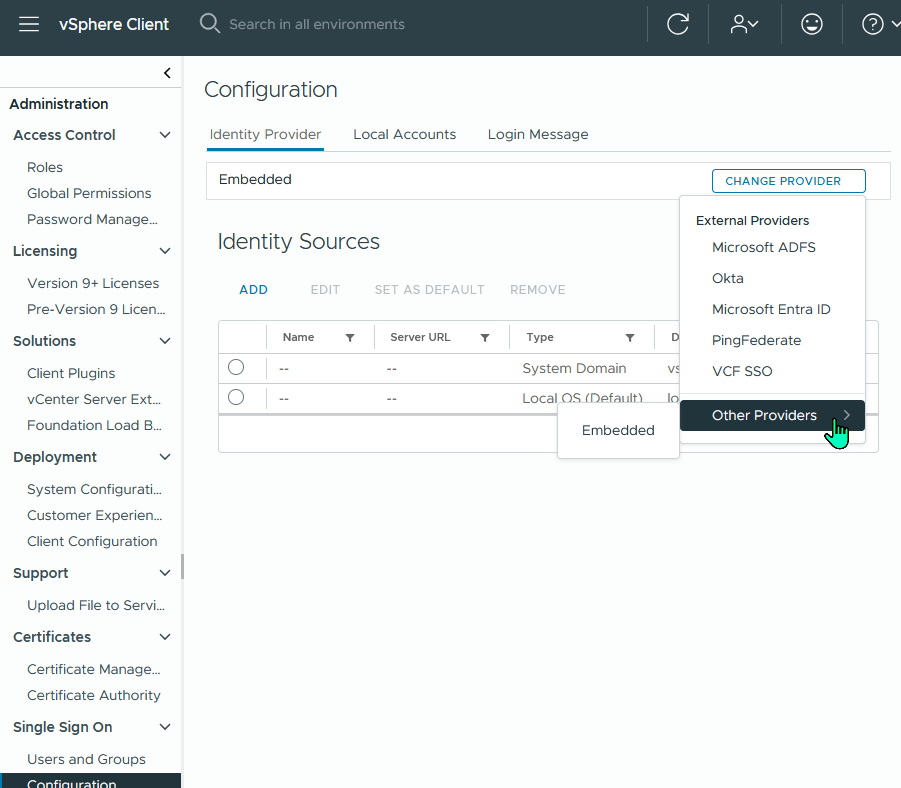
So i’ve choosen AD/LDAP and then hit next and afterwards configure to be presented with the configuration options which will vary depending on what provider (modern or directory based) you choose!
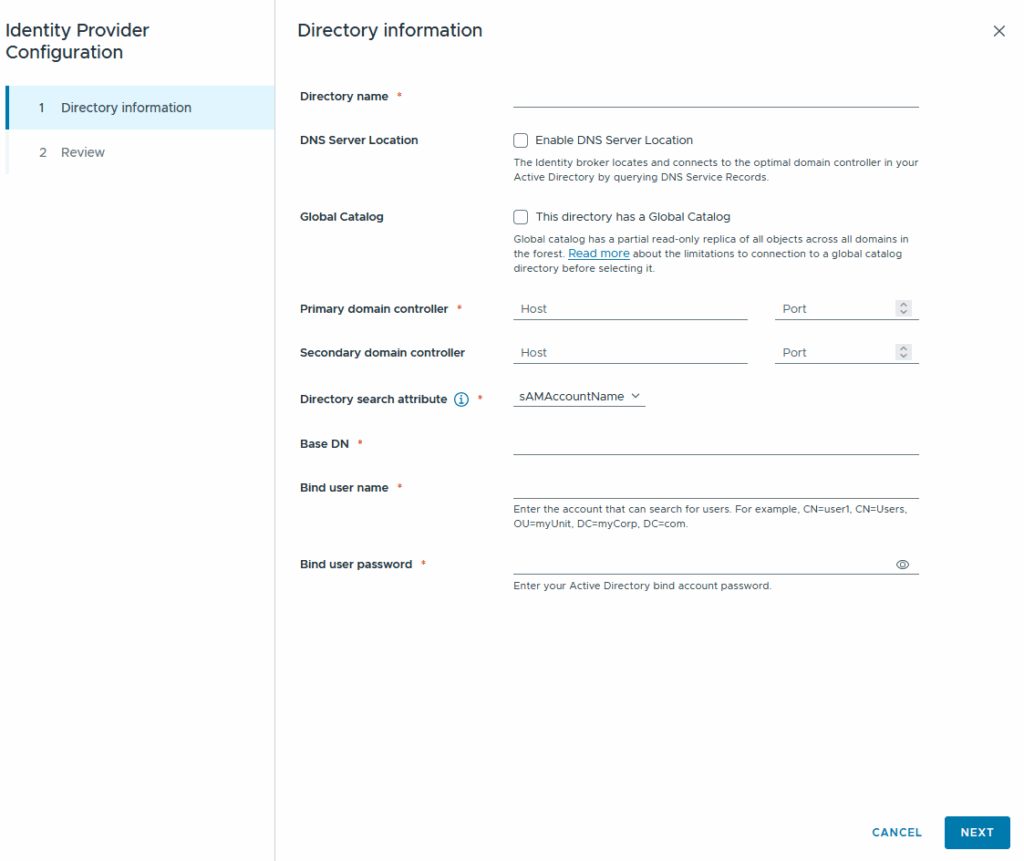
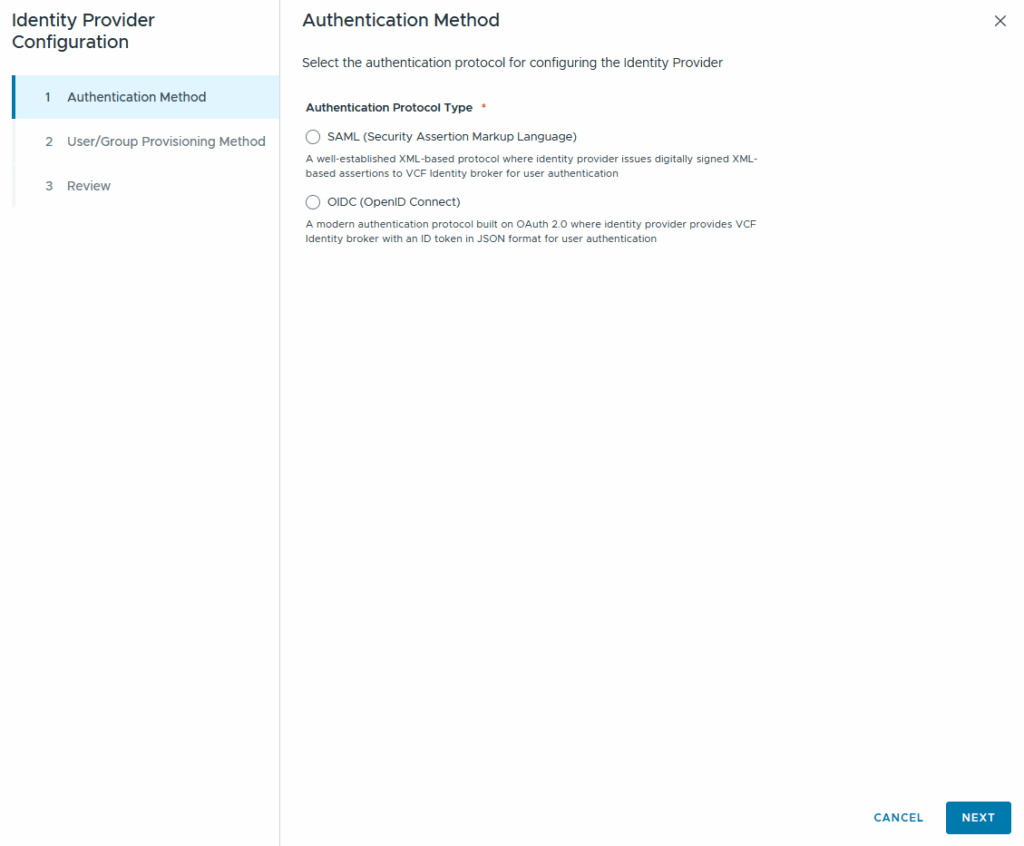
On the left we see the Directory-Based identity provider wizard, on the left we see the modern Identity Provider wizard. Keep in mind if you select the “global Catalog” option you need to check the following KB as it has some caveats:
https://knowledge.broadcom.com/external/article/386869
As this is a lab-setup i will be lazy going with ldap to connect to my environment, surely in a productive environment you should already be using ldaps as your default 😉 The port for ldaps or ldap will be added automatically!
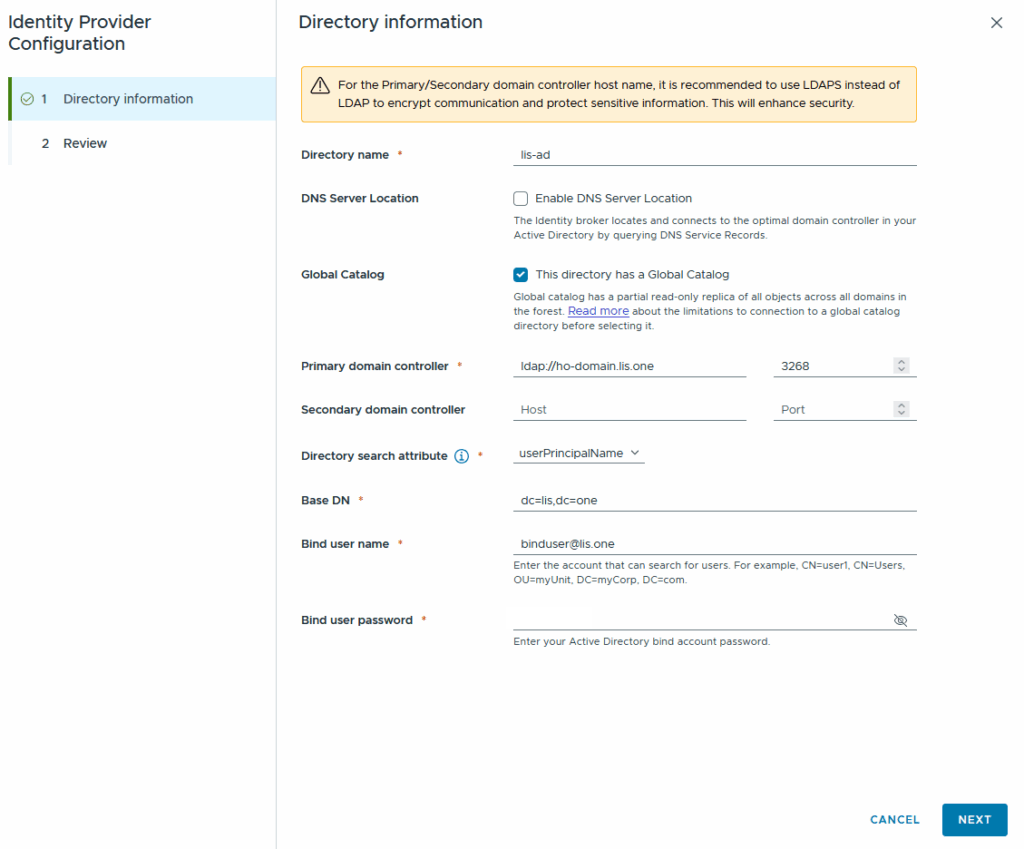
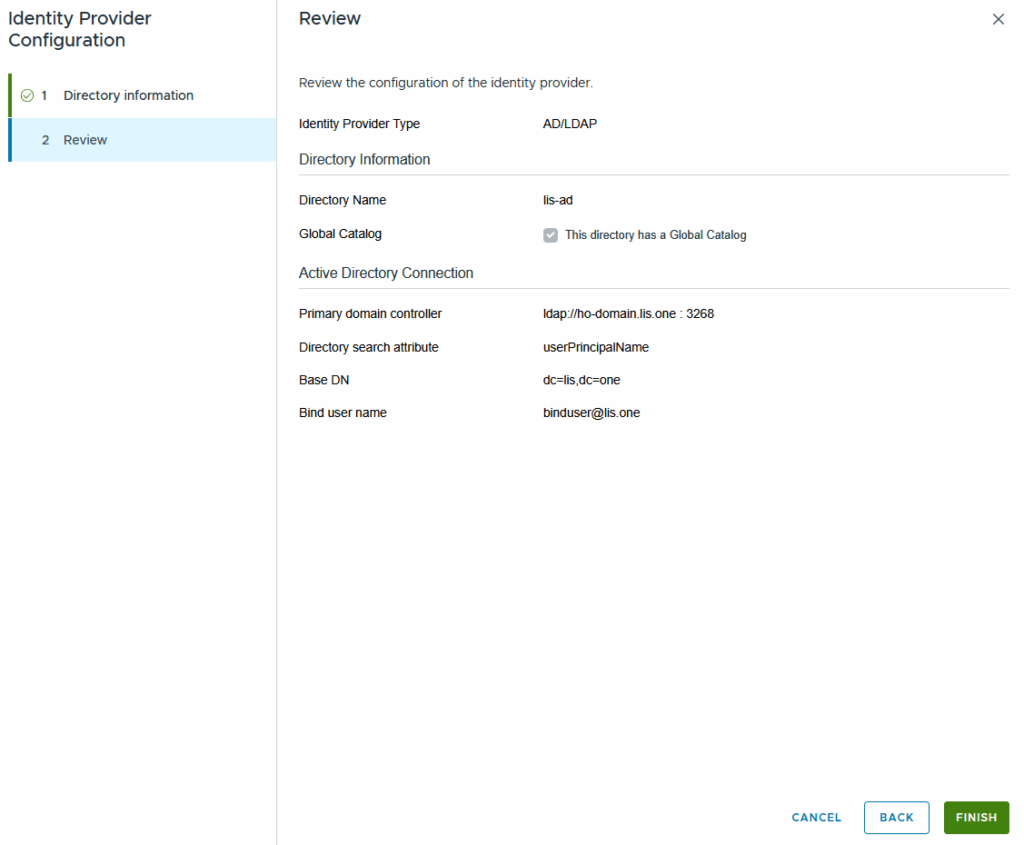
Now simply review everything is alright and your Identity Provider configuration is done!
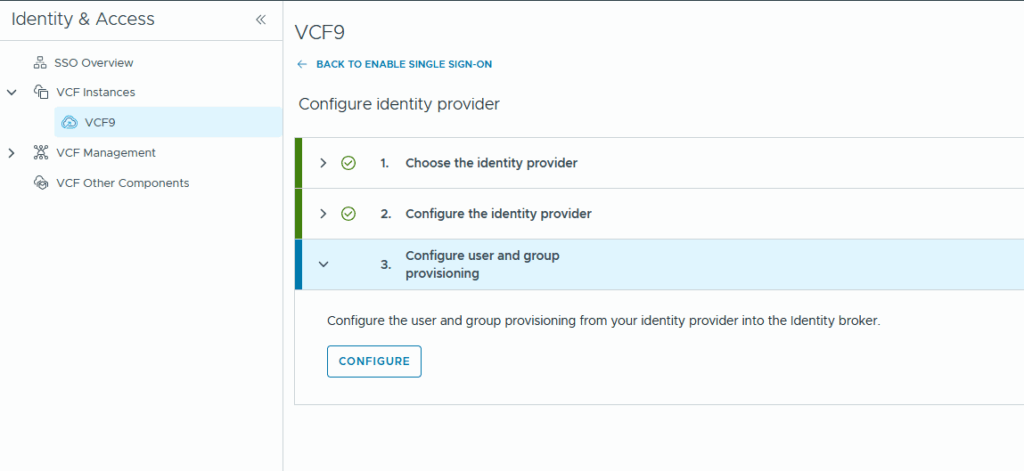
The last step now involves enabling which users are able to login!
At step 1 we review our Directory Information (again) and then we map the LDAP/AD Attributes to the vcf attributes:
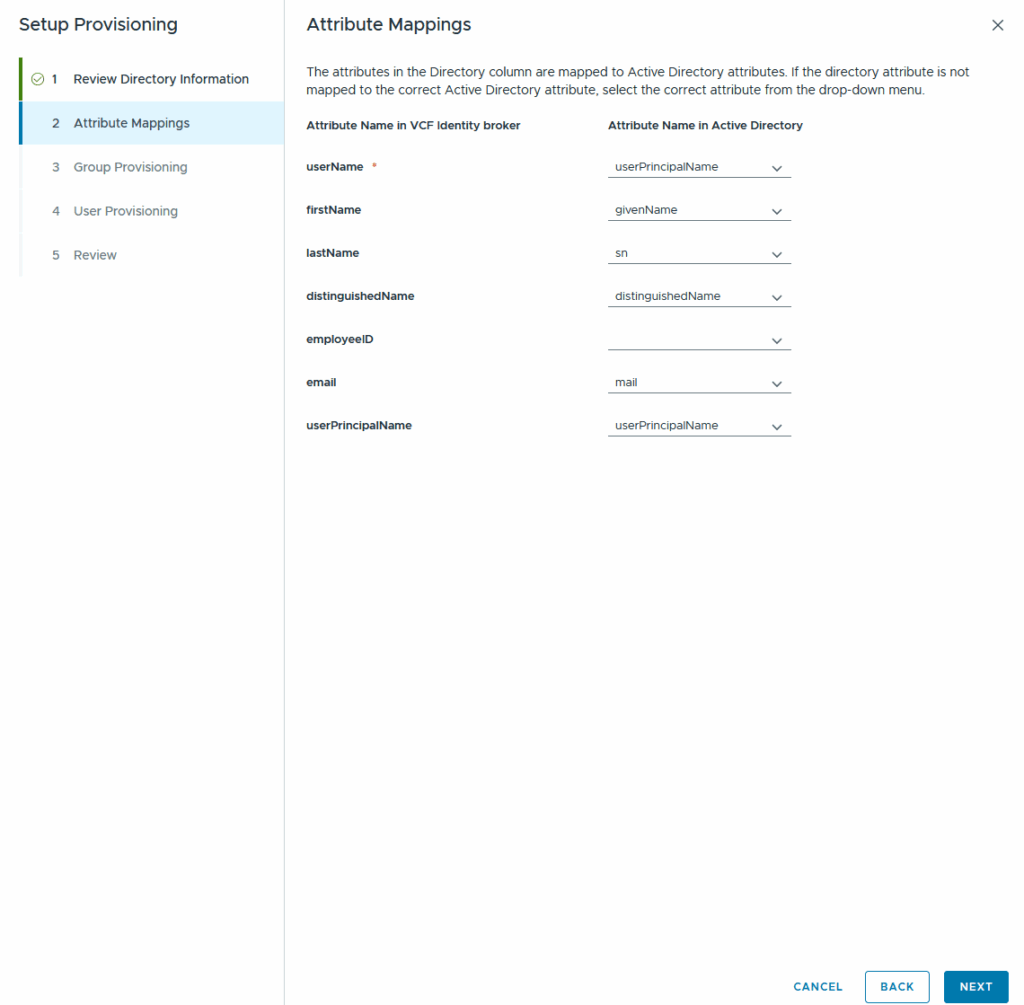
After the attribute-mapping you choose your Group which inherits the users who are allowed to leverage the SSO.
I’ve created a new universal group (due to the usage of the global catalog) called VCF-SSO where i will include my members:
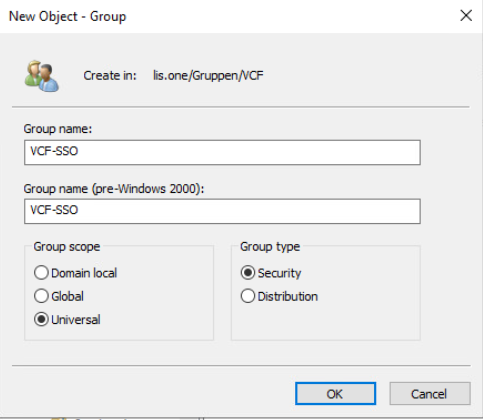
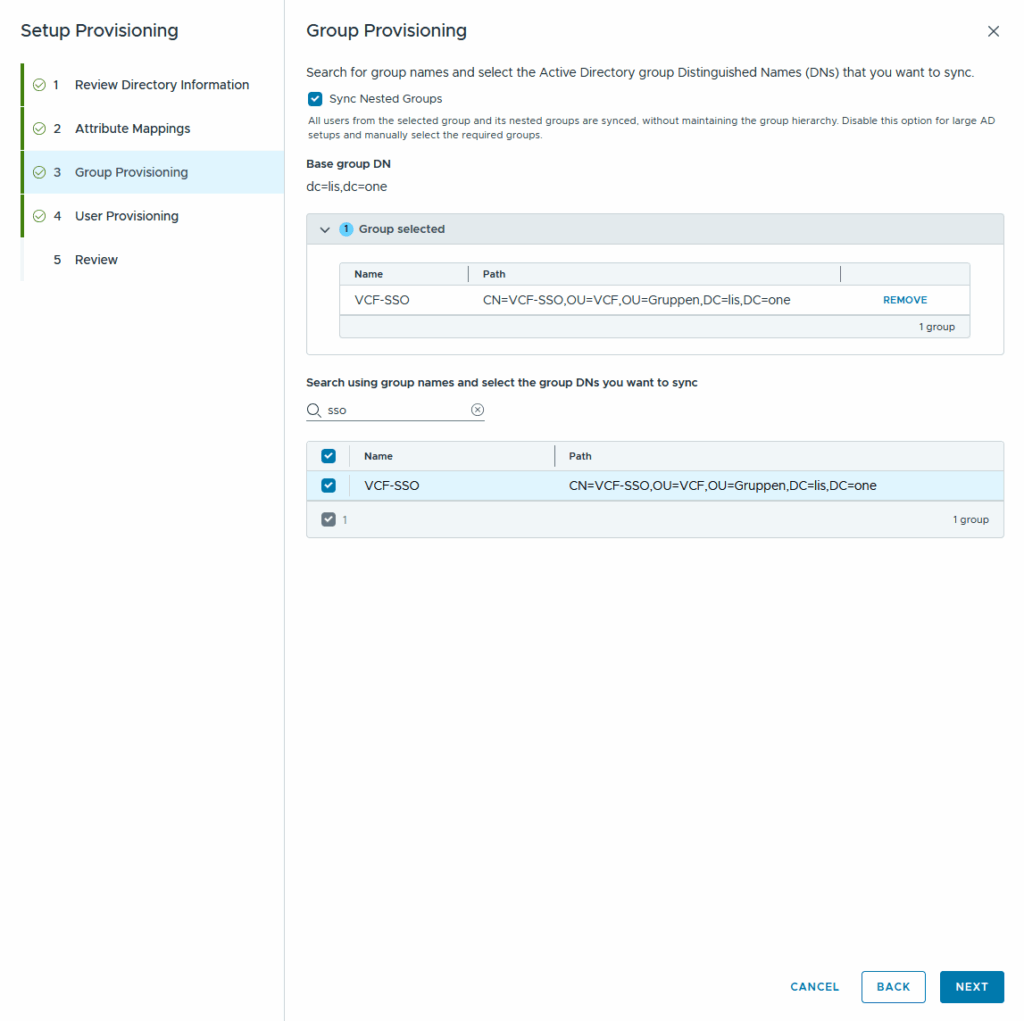
we can also provision users but having an Active Directory Group to control the membership is good enough 😉
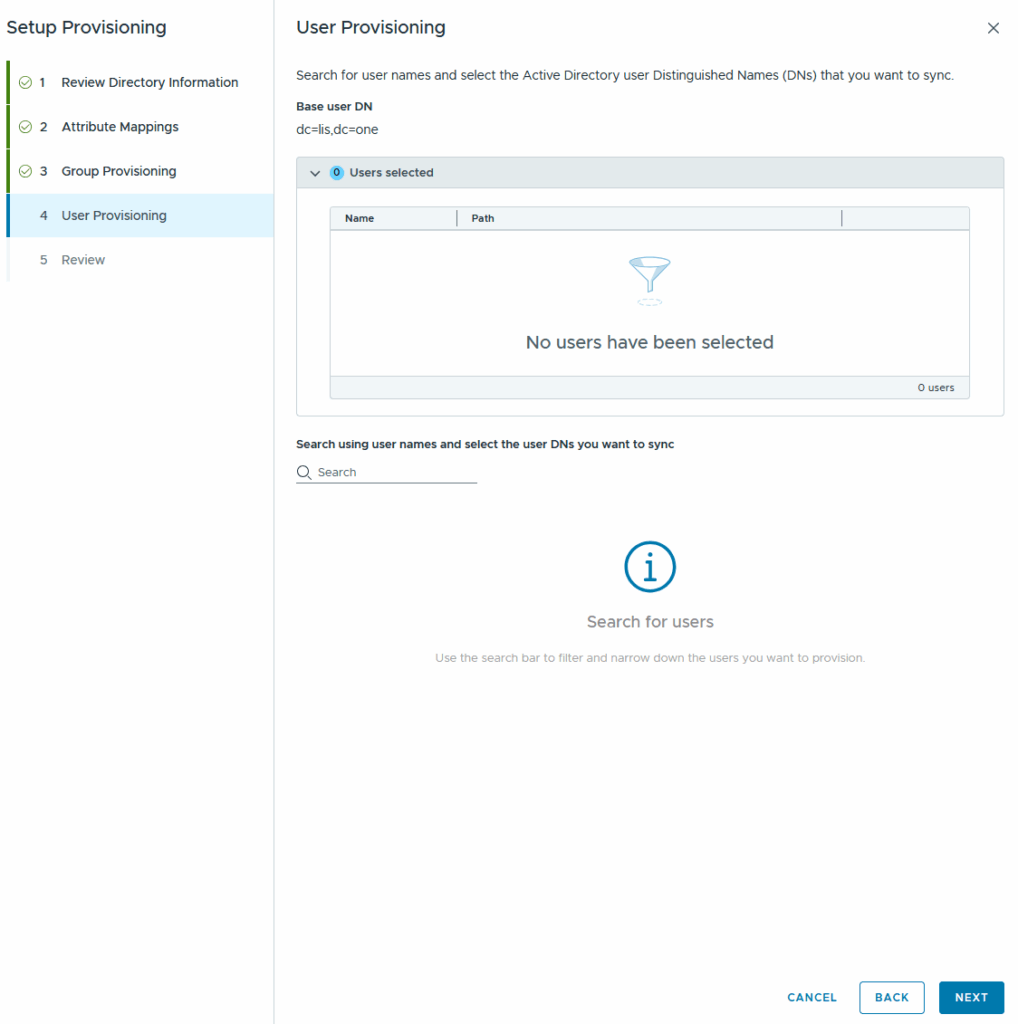
Now we review everything and we are finished with setting everything up 🙂
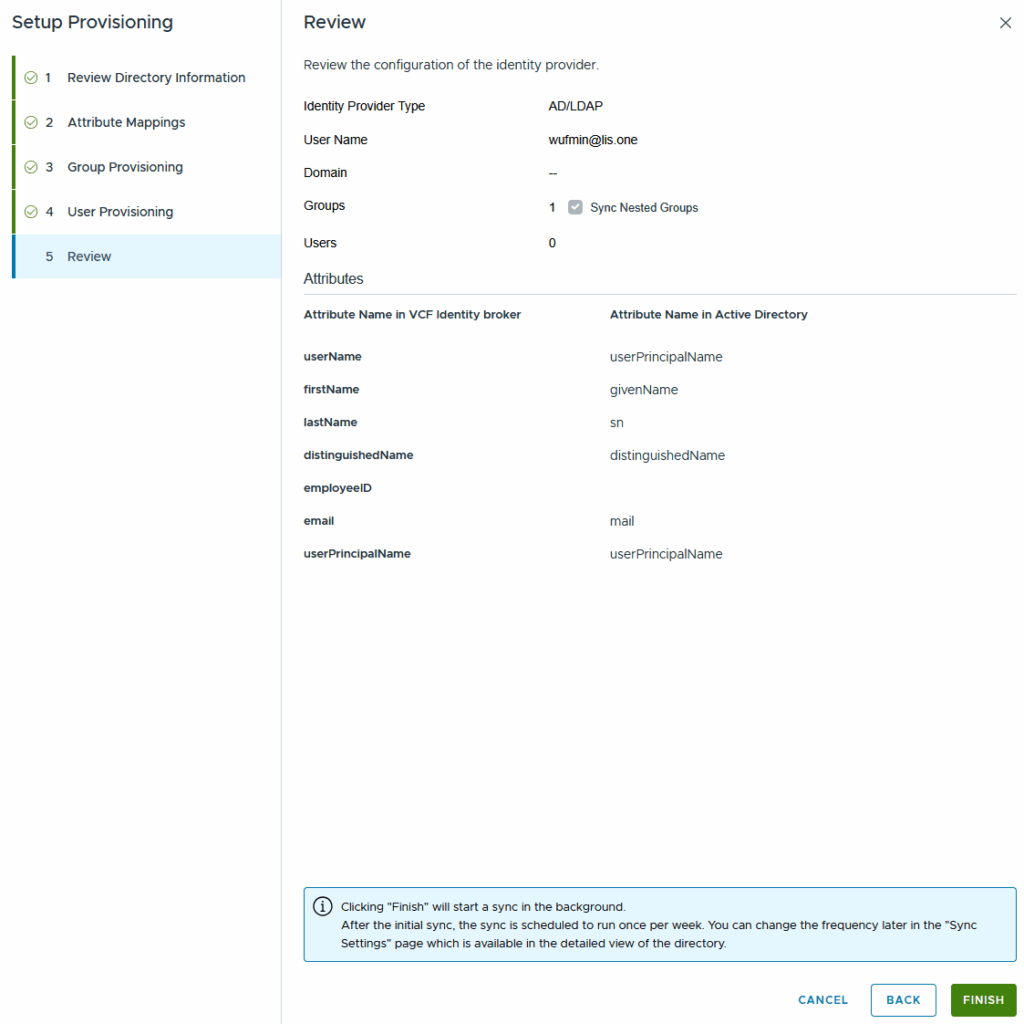
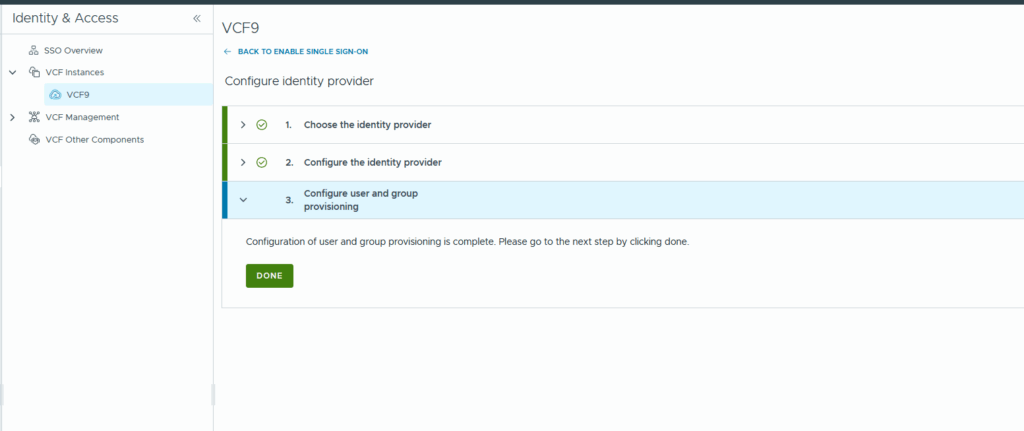
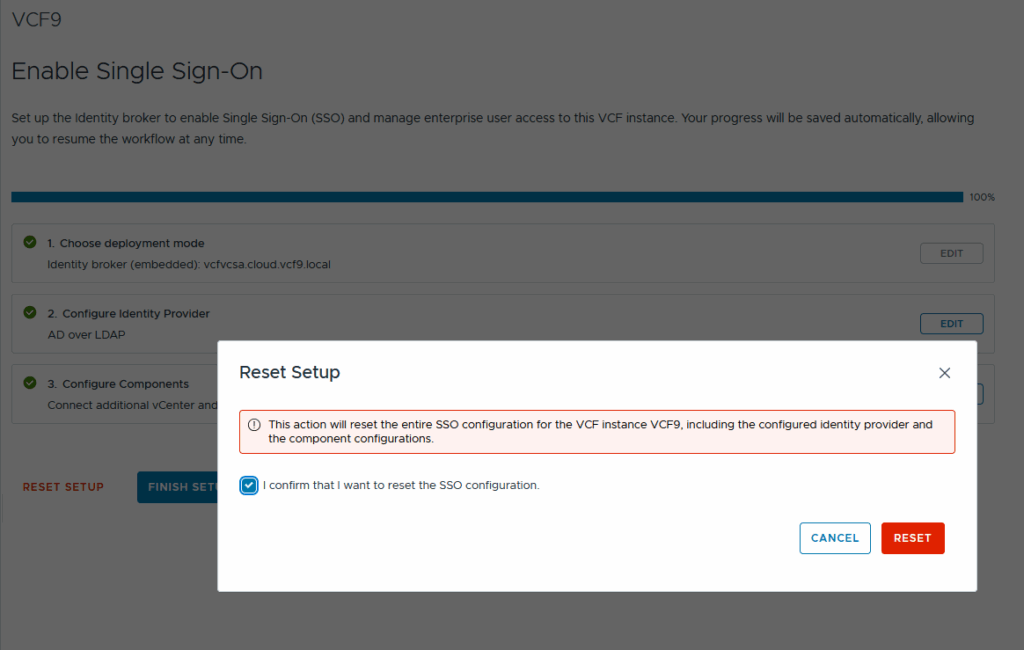
In the last step we are able to either reset the setup:
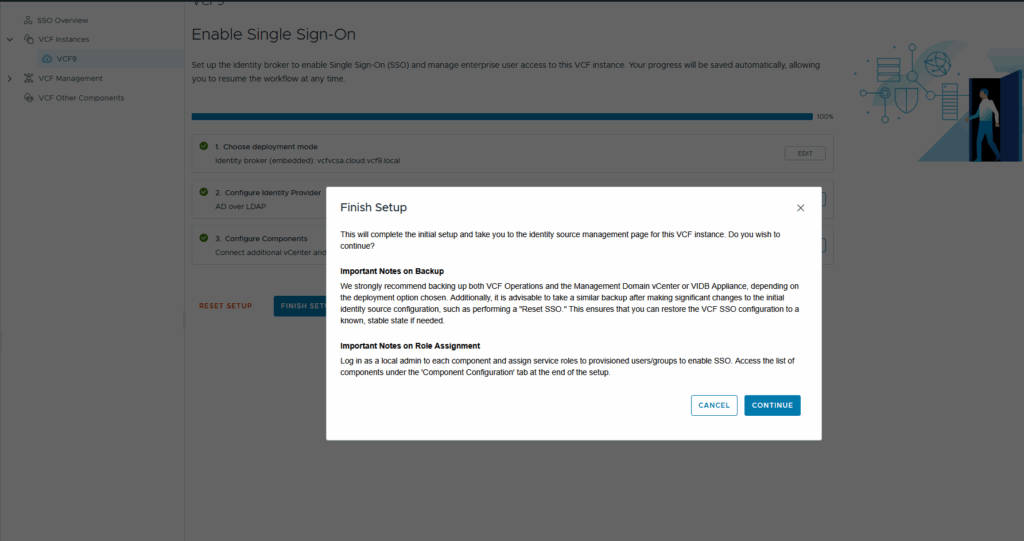
Or finish it along with the warning!
Then we go to the component configuration, select our nsx and let VCF Operations configure our component:
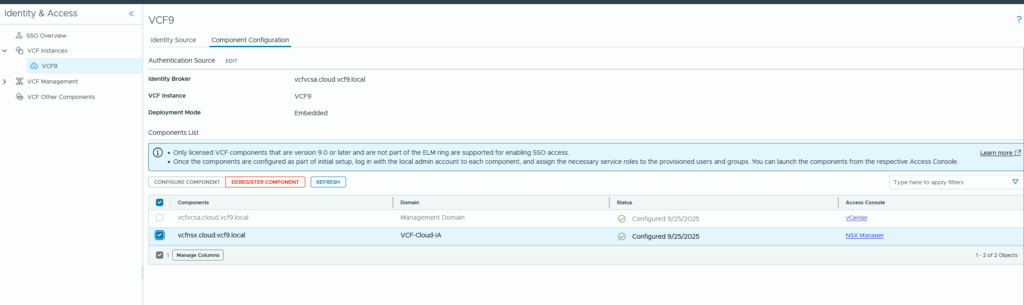
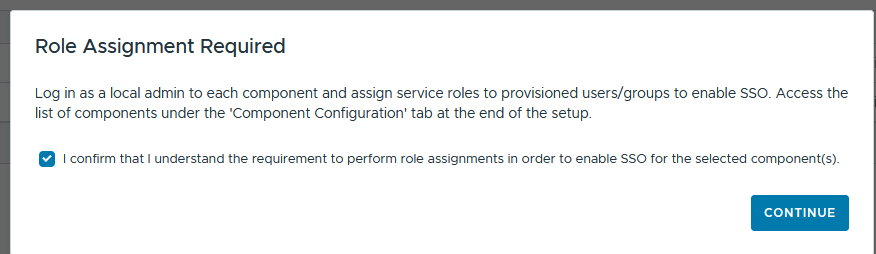
To finish everything up we connect to our other components (in my case it is only NSX) and assign a role to our VCF-SSO User
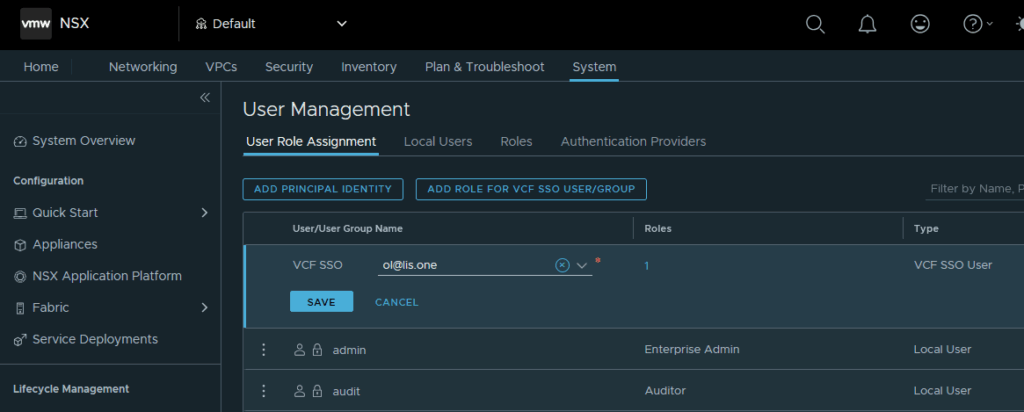
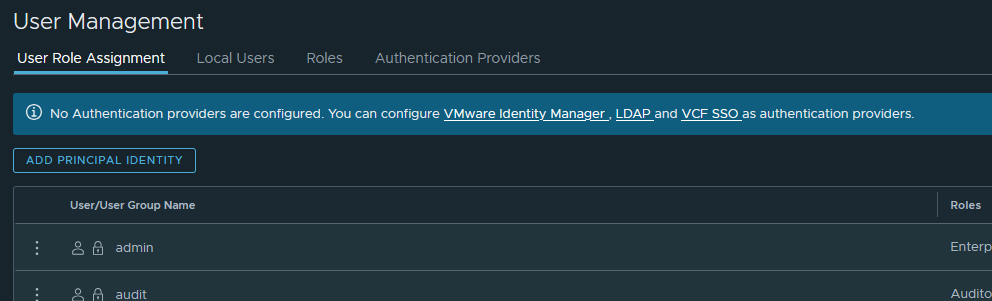
If you don’t see the “ADD ROLE FOR VCF SSO USER/GROUP” Button, make sure that VCF SSO is registered with NSX, otherwise you might get that blue bar:

Thats it!
All in all it is really easy to integrate VCF SSO with the embedded Management vCenter! Obviously for productive environments you should leverage the Identity Broker simply because your vcenter might otherwise be your single point of failure in regards to SSO Capabilites!