
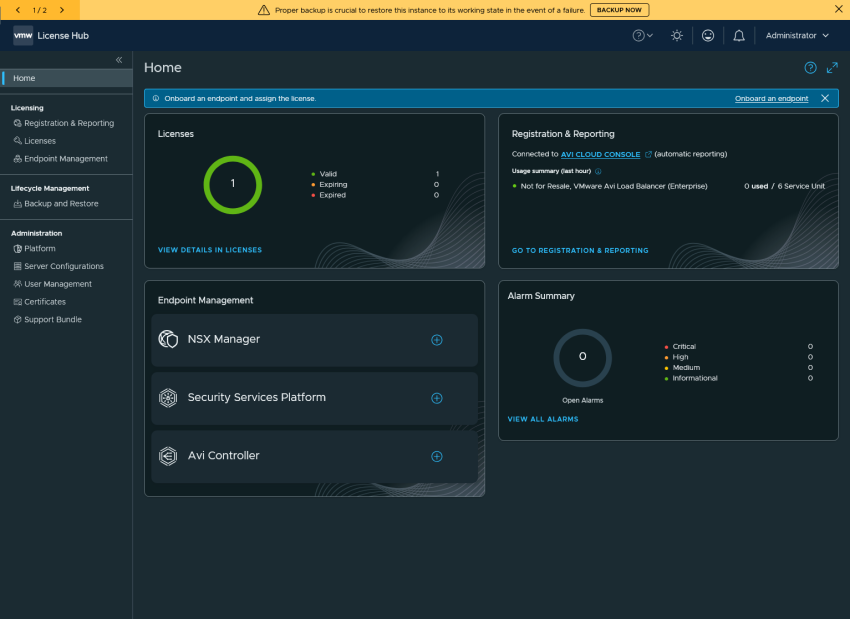
So after we deployed the License hub we need to connect and register it with the pulse avi portal.
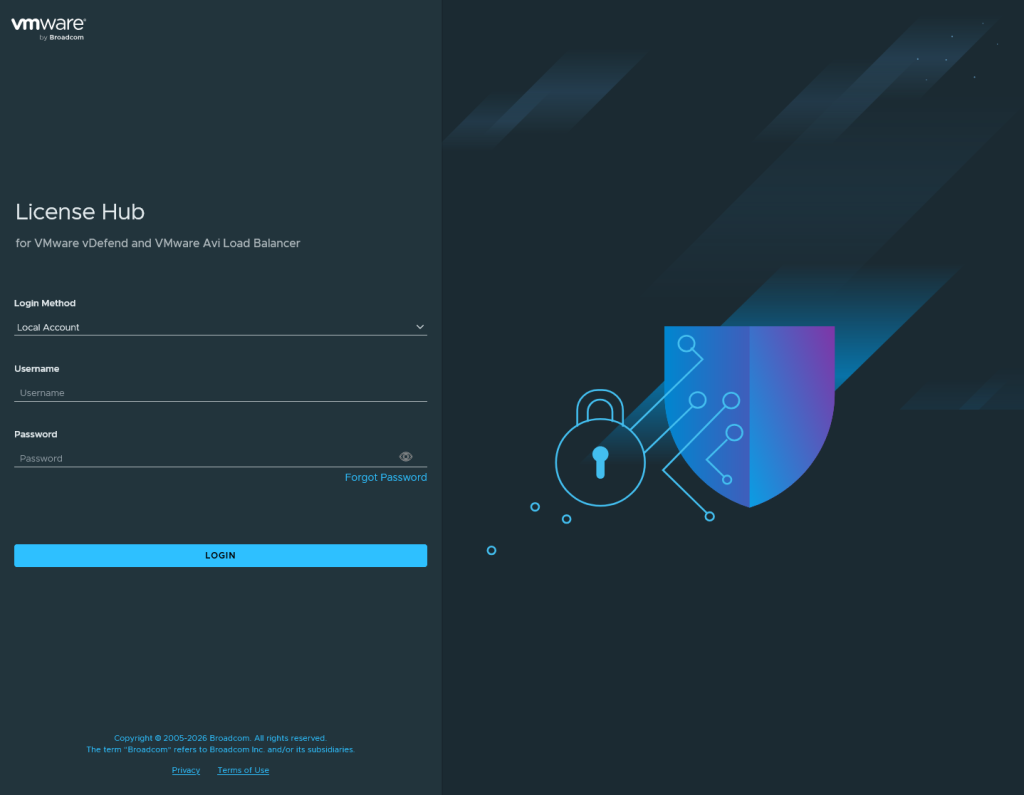
Connected and Disconnected Mode
After logging in we are greeted with the 2 operation modes
Connected Mode
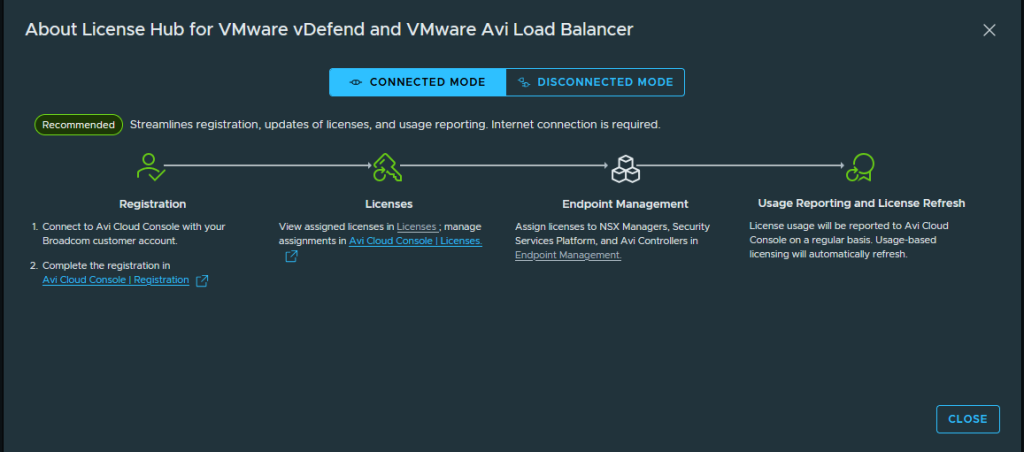
In this mode the license hub is connected to the online portal and is able to automatically report the license usage and update its licenses.
Disconnected Mode
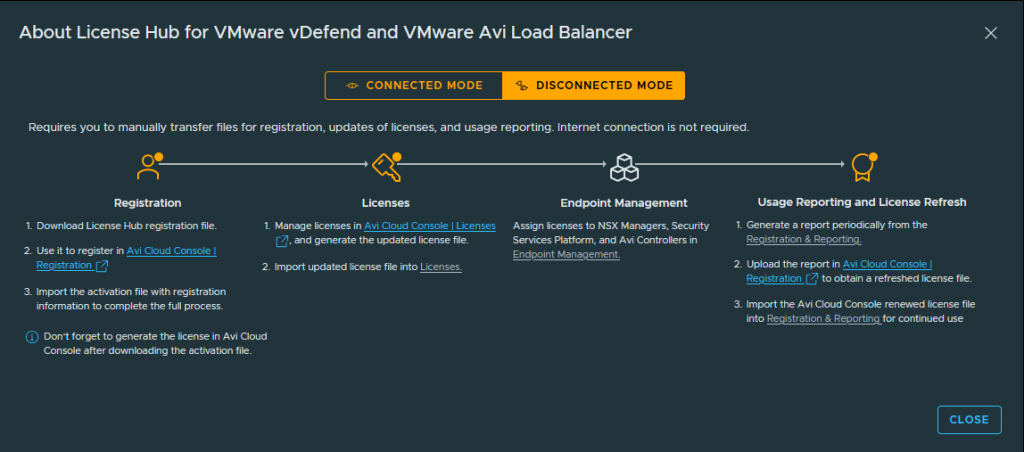
This mode allows us to leverage a file-exchange to license our products without having a constant connection to broadcom.
And in the end it is up to use, to choose which mode we use.
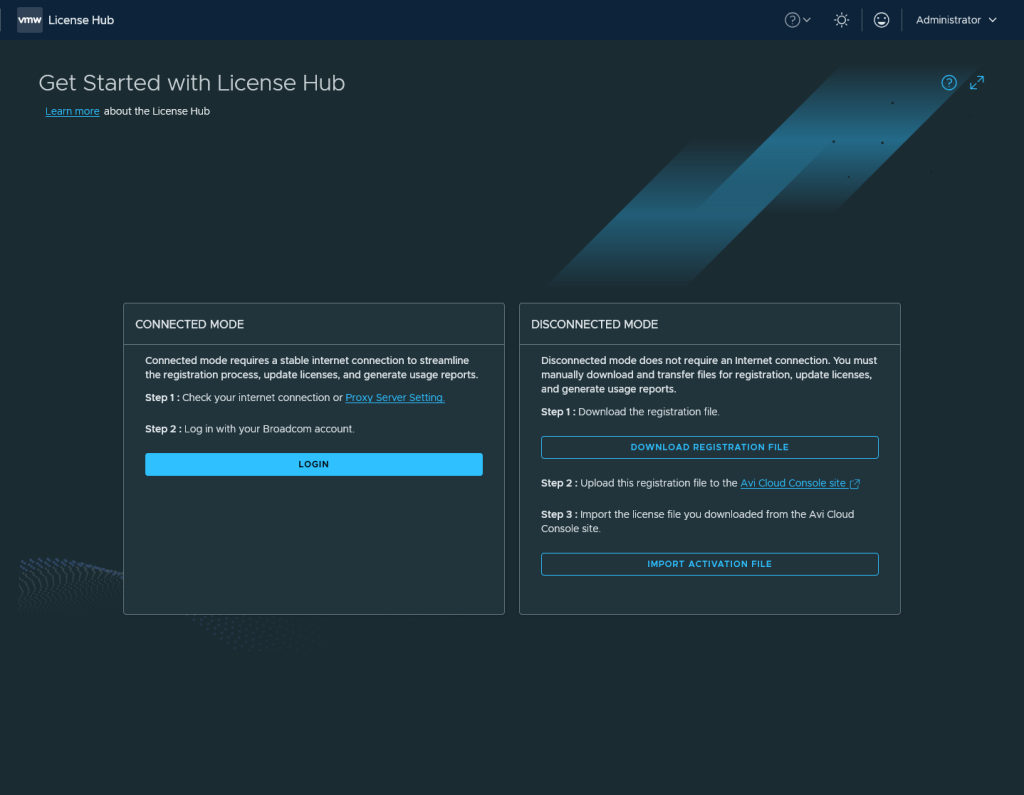
I will go with the online mode, as i want to show how the appliance will register itself into the portal and what we will be able to do.
Connect your License Hub to your Broadcom Account
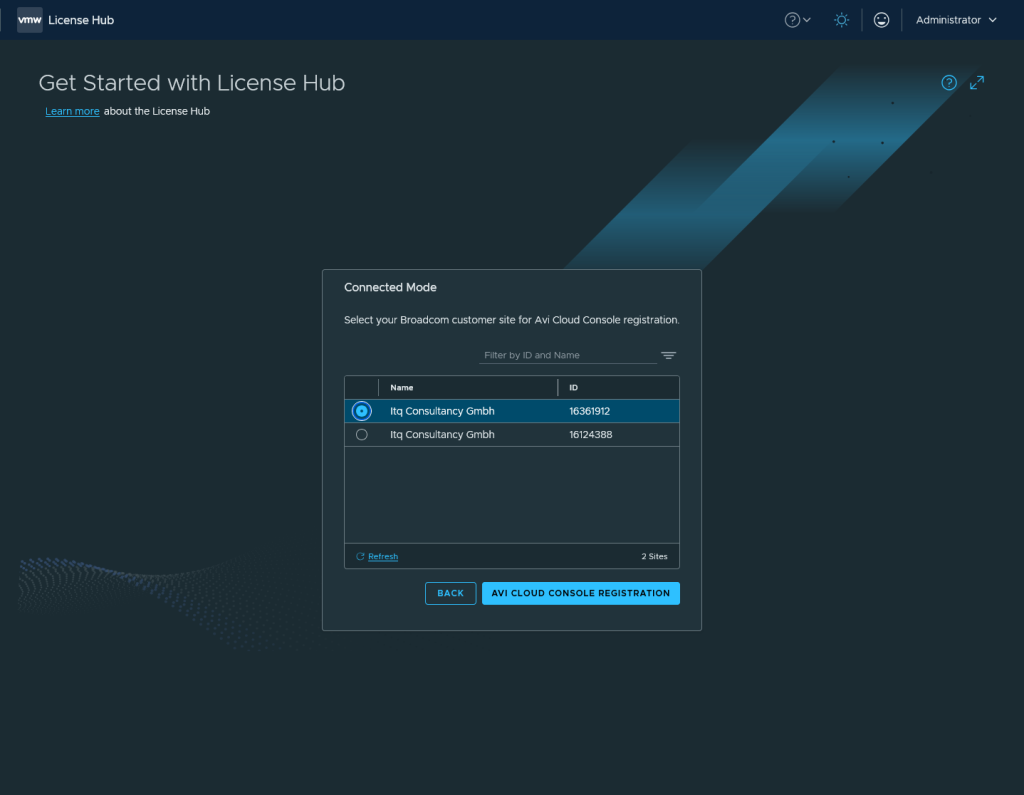
We hit the big blue login button and then are redirected to a broadcom login where we enter the broadcom-account information that has access to the pulse portal (if you already have a session open somewhere else, that cookie is taken).
You choose your site-id and register the VM with the AVI Cloud Console by hitting the blue button again:
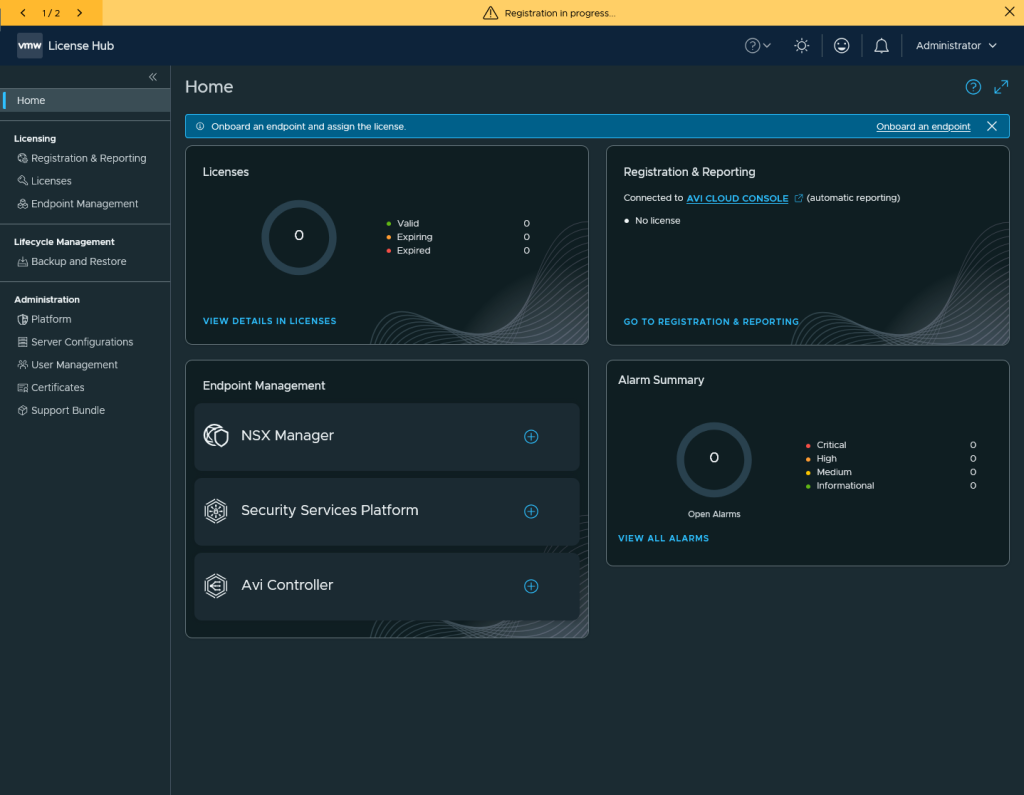
License is starting and we are greeted with a new UI:
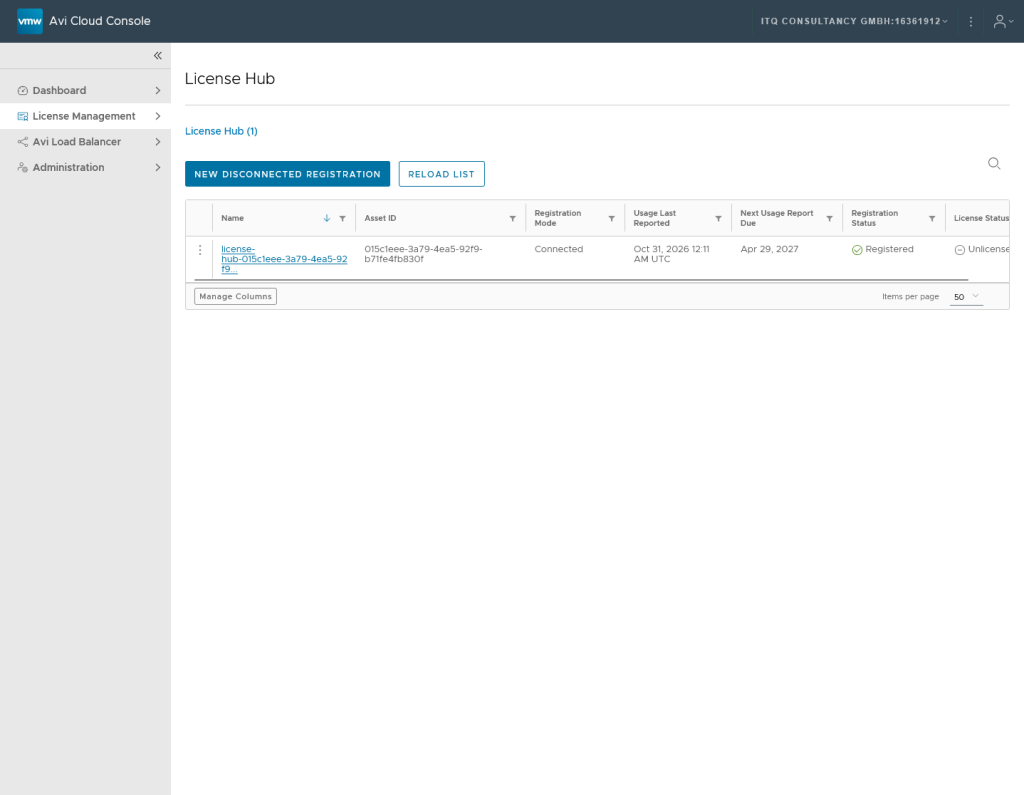
The License Hub will shop up but stays in the unlicensed status.
But since we don’t have any licenses available we need to add some from our broadcom support portal. The Licenses should be in the “My entitlements” section. Choose the VMware Avi Load Balancer Section and click on licenses.
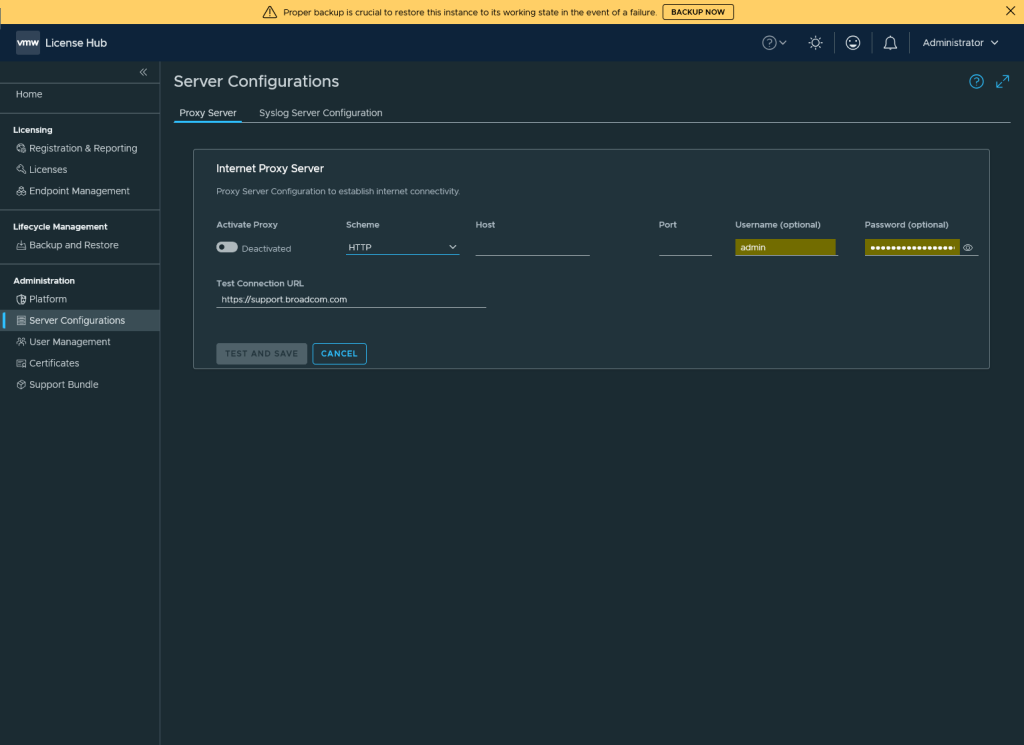
If proxy access is needed for the whole internet connection, you can configure that in “Server Configurations”
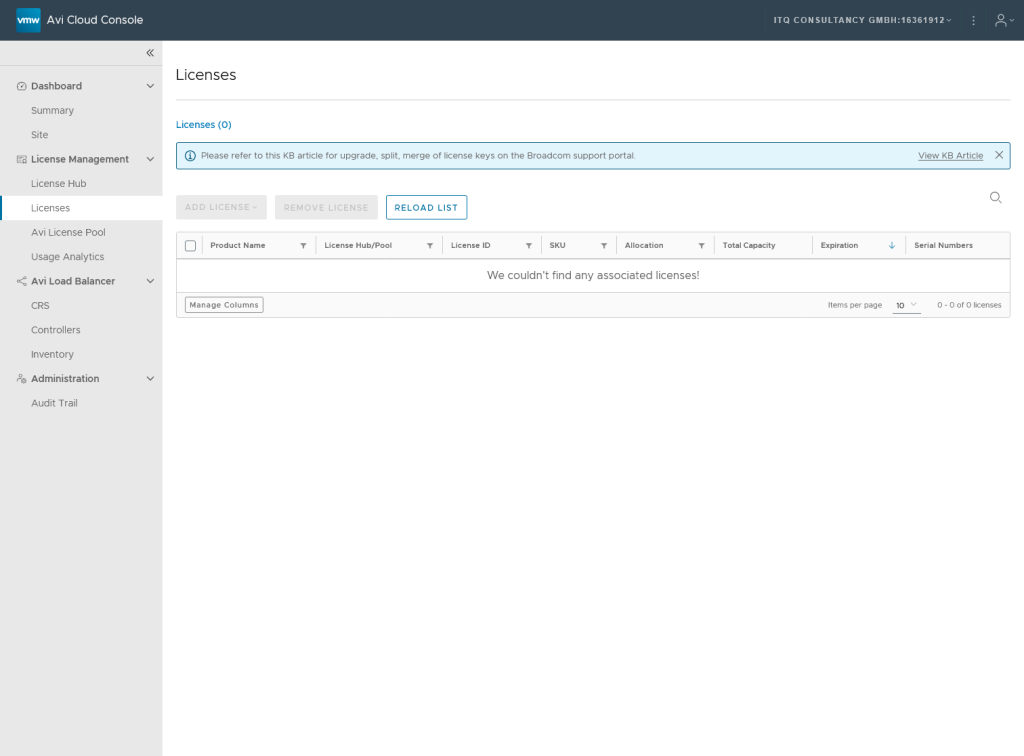
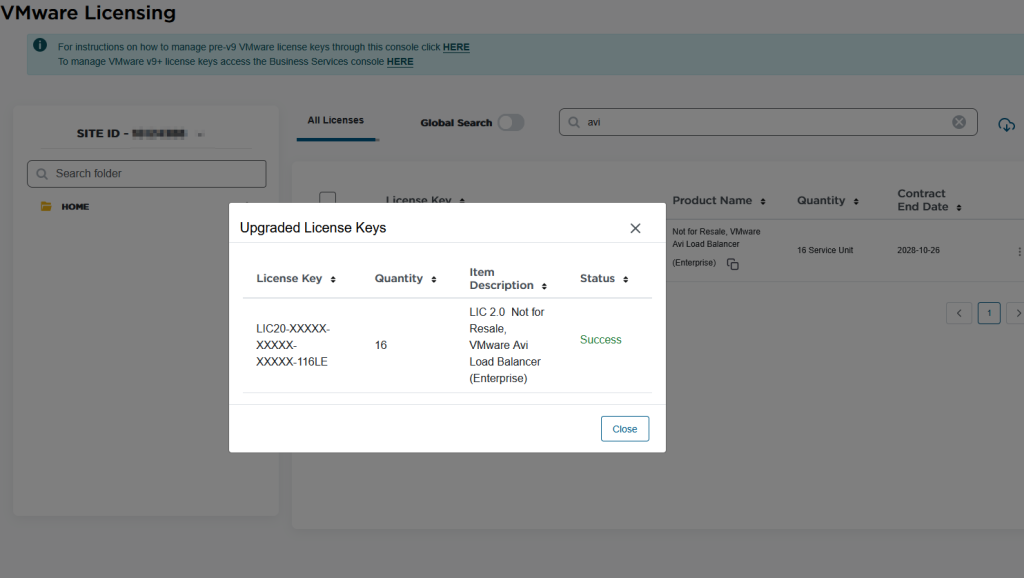
You might need to “upgrade” your old license key to a new Version 2 License Key in the License-Portal if the pulse portal doesn’t show a license!
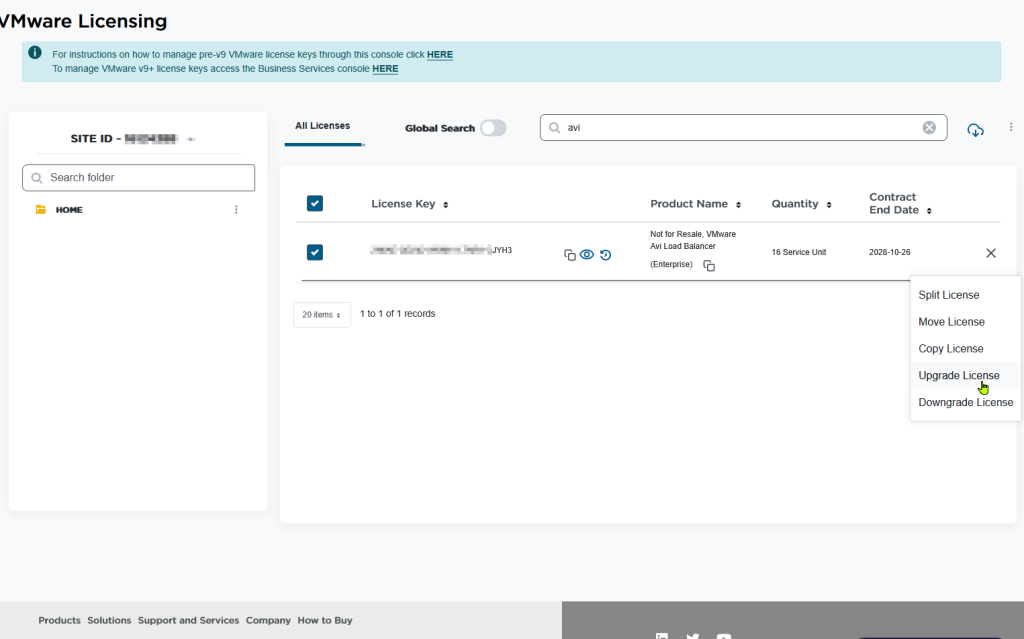
Upgrading the AVI License
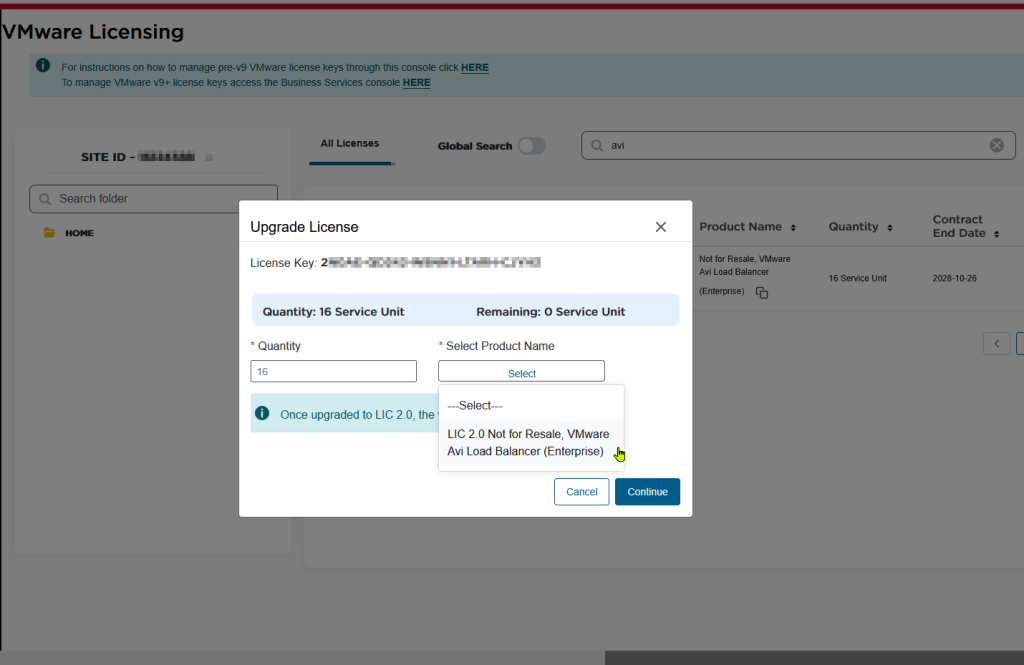
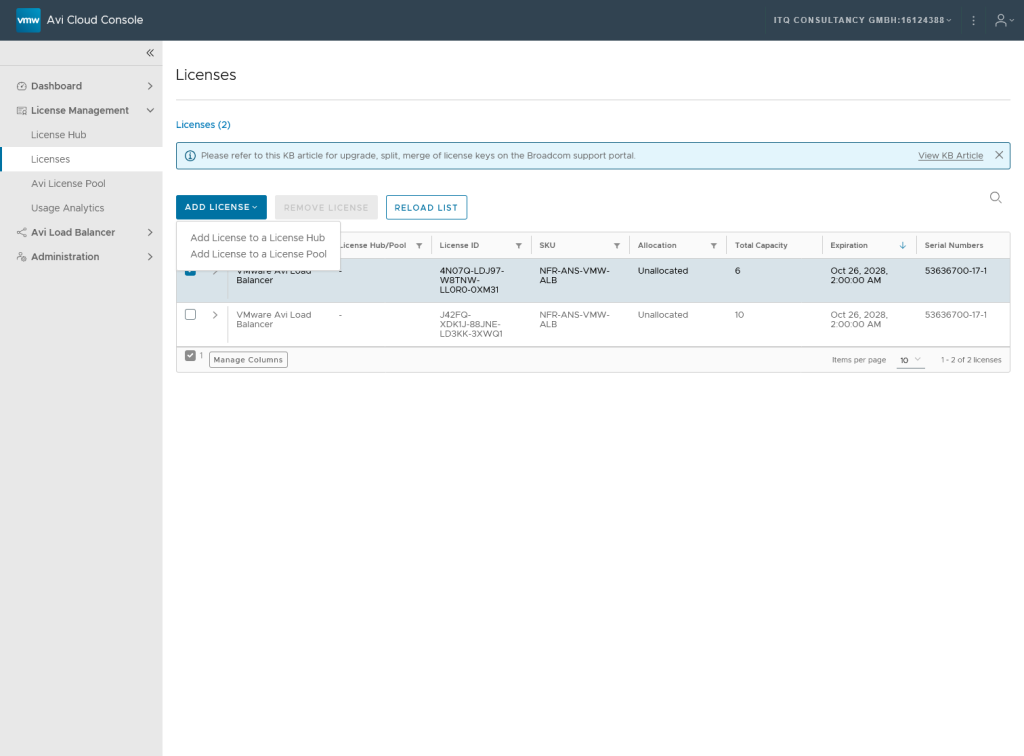
And then we are able to add the license to our license hub. Select the License you want to add and then press “Add License” and then “Add License to a License Hub”.
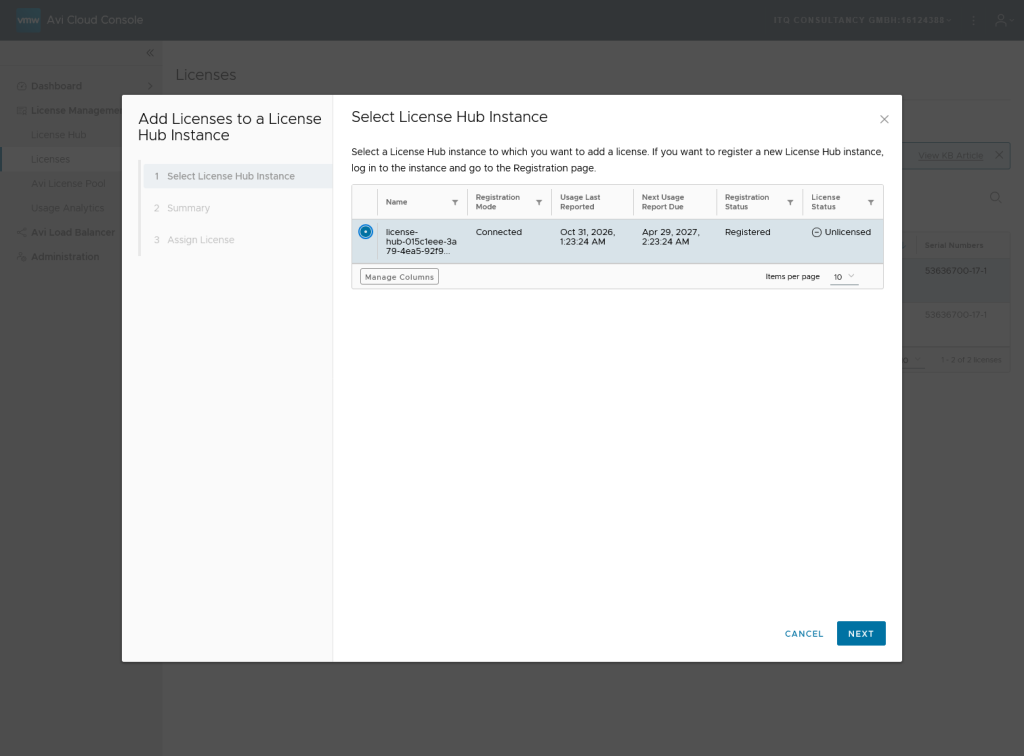
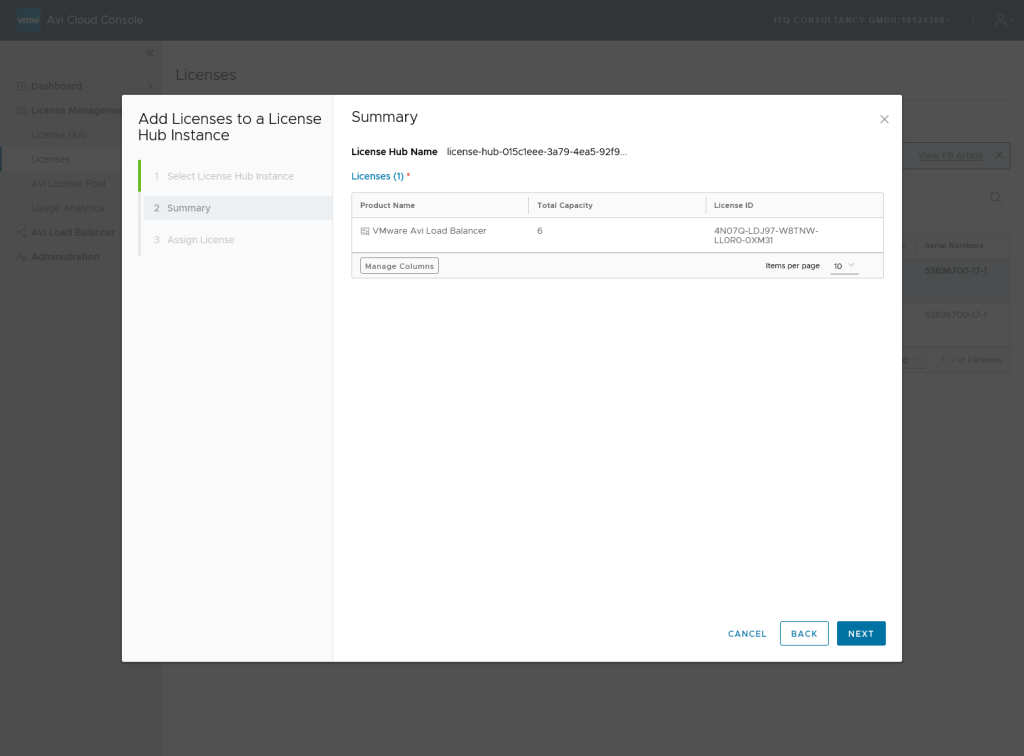
Now we follow the wizard and continue with the license assignment.
stupid errors also happen:
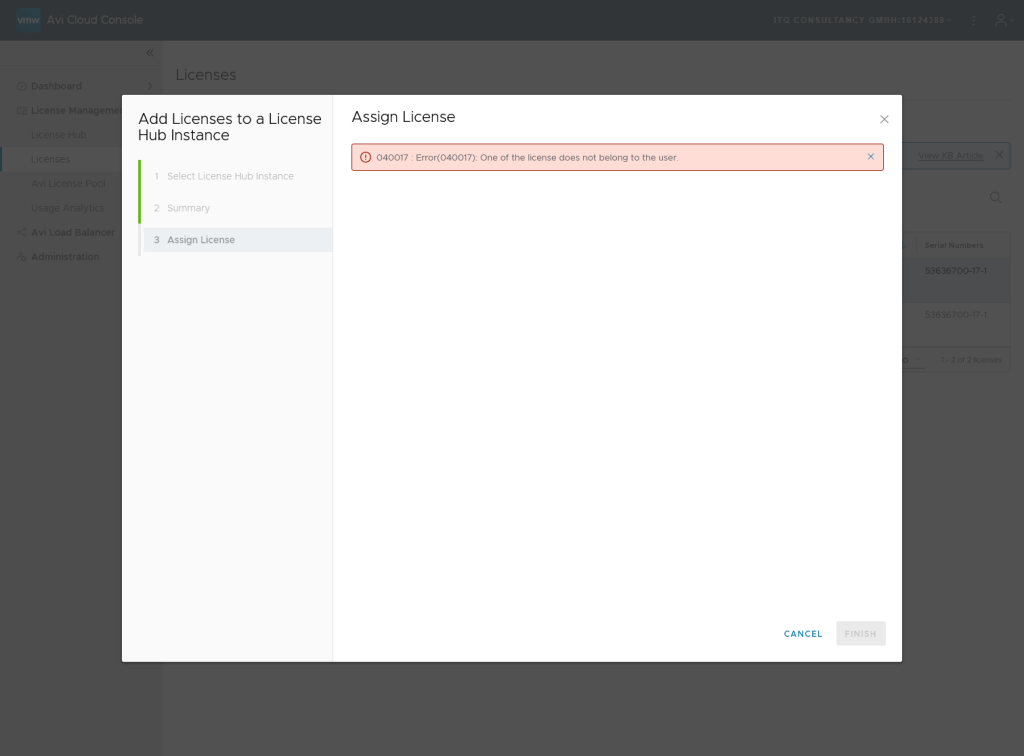
But sometimes it simply helps to try it again 🙂
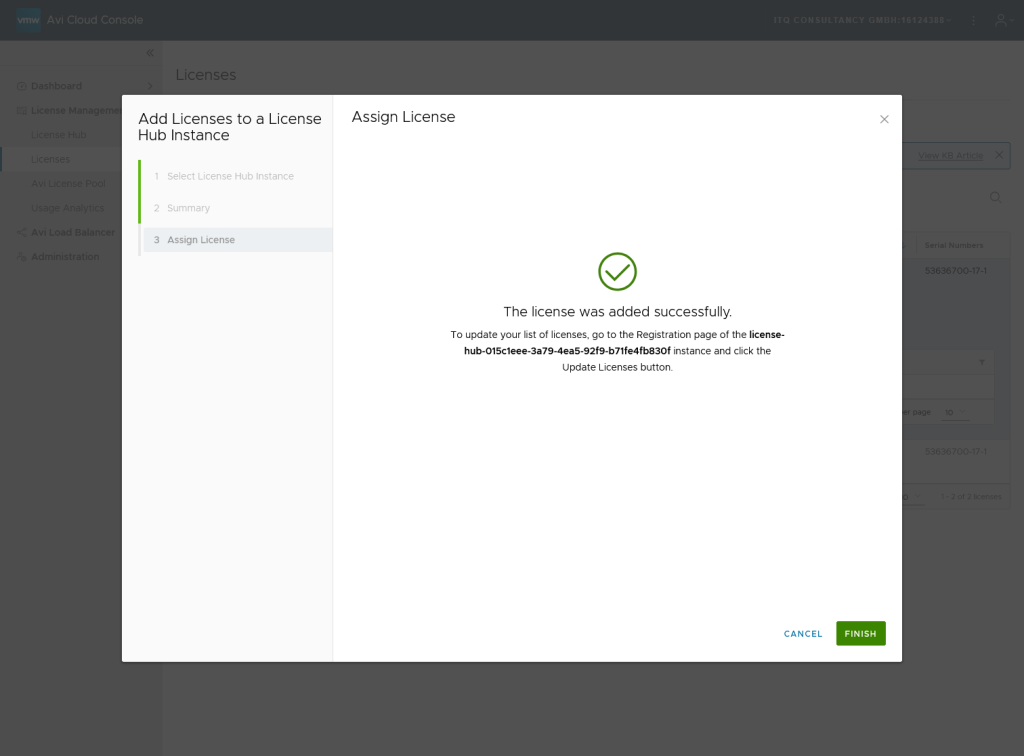
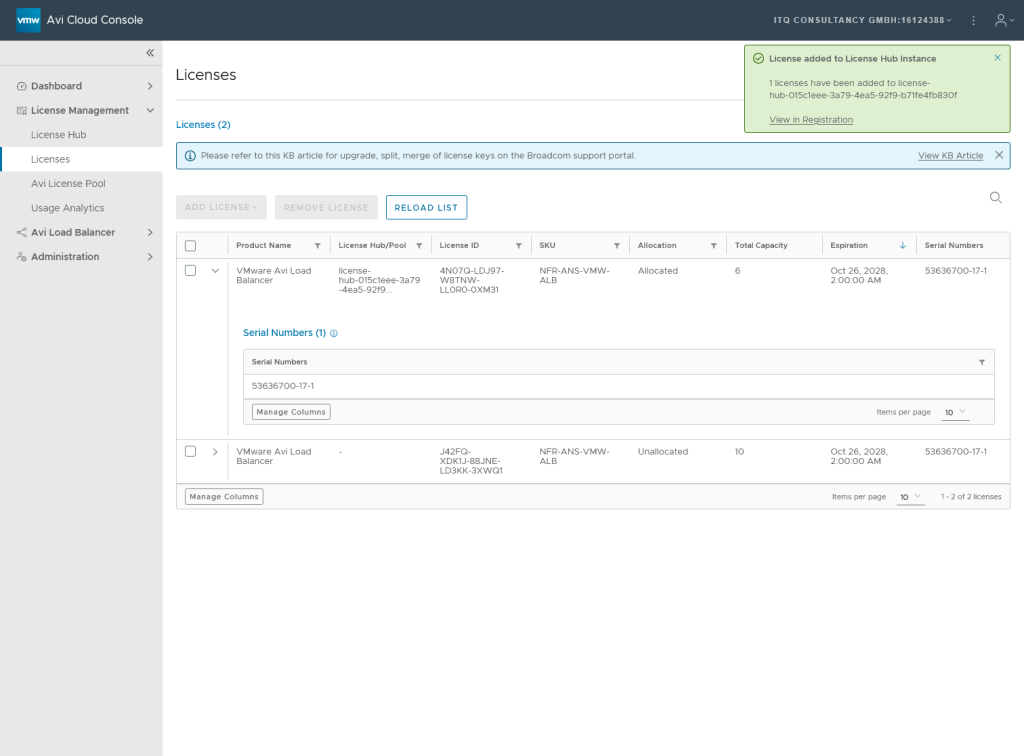
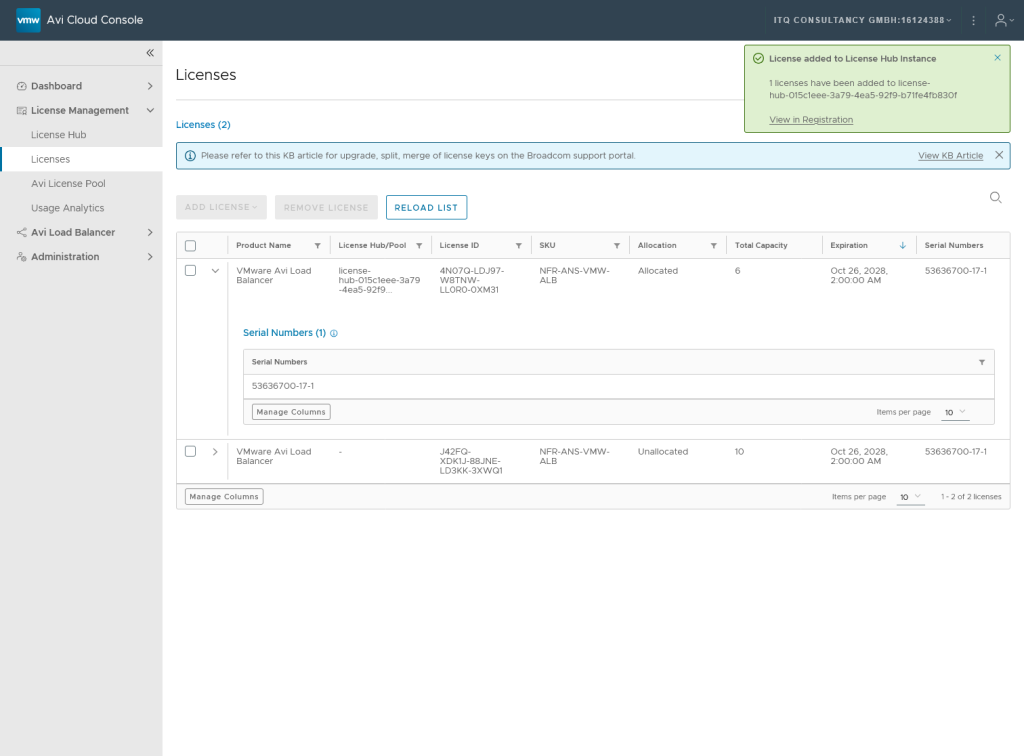
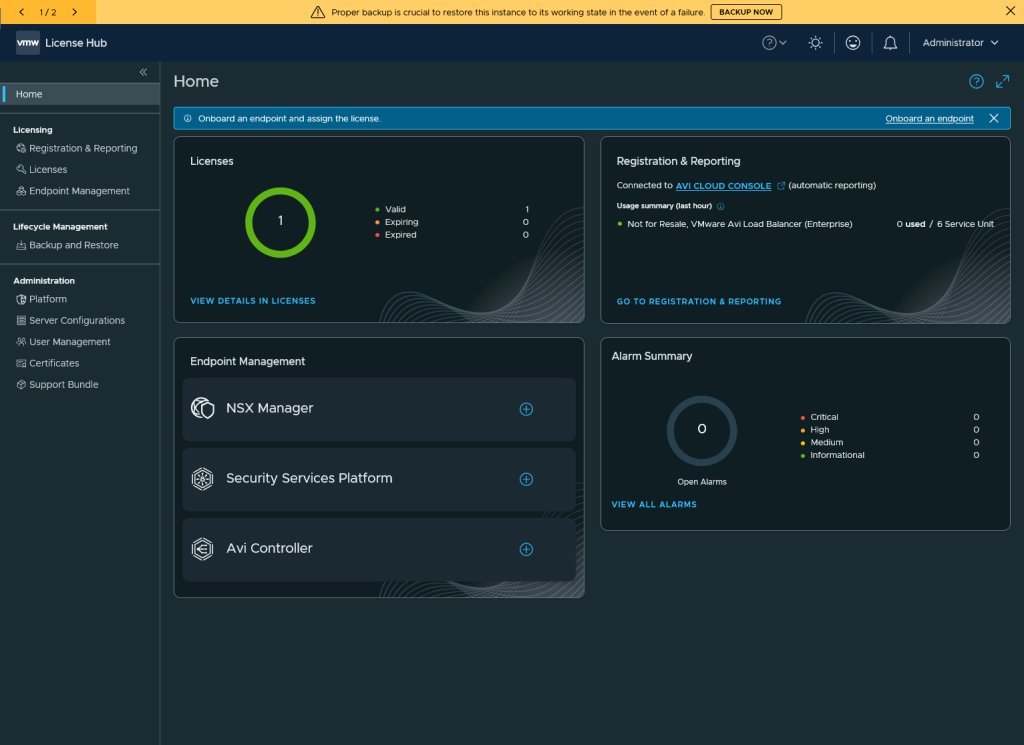
And after a few seconds/minutes the License Hub has also updated its status!
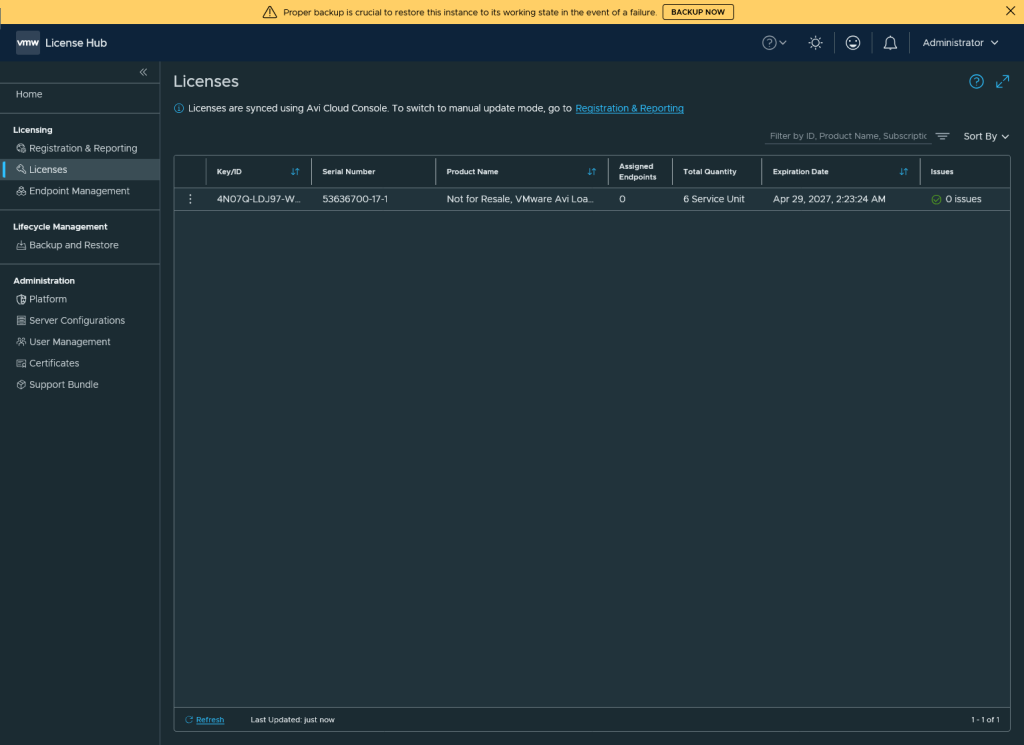
The Licenses Section shows the License and its Quantity:
1 thought on “Registering the AVI License Hub with the AVI License Portal”